Getting Started With NavLive

Working with NavLive Data in Trimble Connect

NavLive data can be sent to Trimble Connect in two different ways, depending on how you want to work with the scan data.

Some users simply want to export selected files so they can be shared, stored, or downloaded within a Trimble Connect project. Others prefer to create a SiteView project, which allows the NavLive scan data to be explored interactively within Trimble Connect.

1. Standard Export to Trimble Connect

Use this workflow when you want to send selected scan data files to Trimble Connect so they can be stored, viewed, shared, or downloaded.
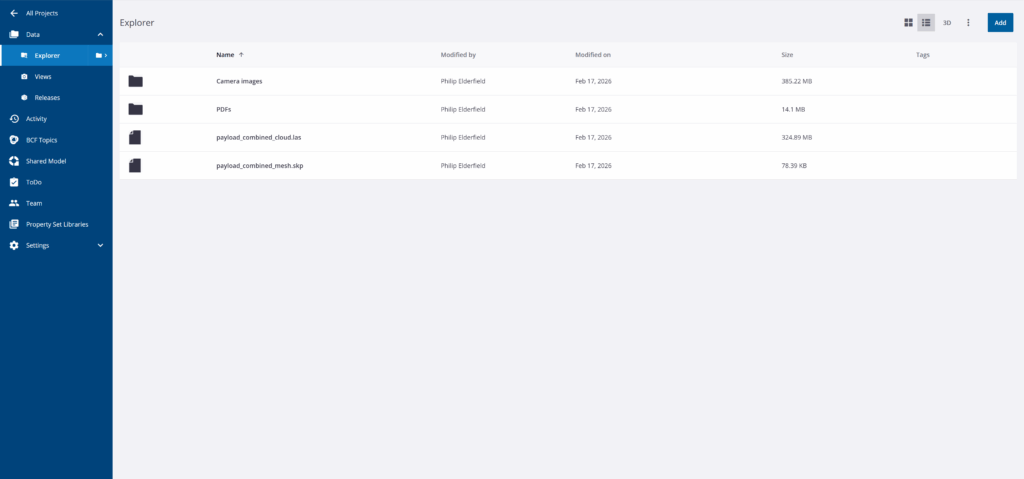
An example of data from a NavLive scan directly inside Trimble Connect

This is the right option if you want to:

  • share scan files with your team
  • keep scan data inside a Trimble Connect project
  • download files later from Trimble Connect
  • work with exported files outside Trimble Connect, such as opening an SKP mesh in SketchUp

2. SiteView Export

Use this workflow when you want to create a SiteView project in Trimble Connect.

This sends the files needed for the NavLive SiteView extension, which lets you explore the scan in a more interactive way. In SiteView, you can view the NavLive point cloud, camera images, scan trajectory, and guide mesh together in one place.
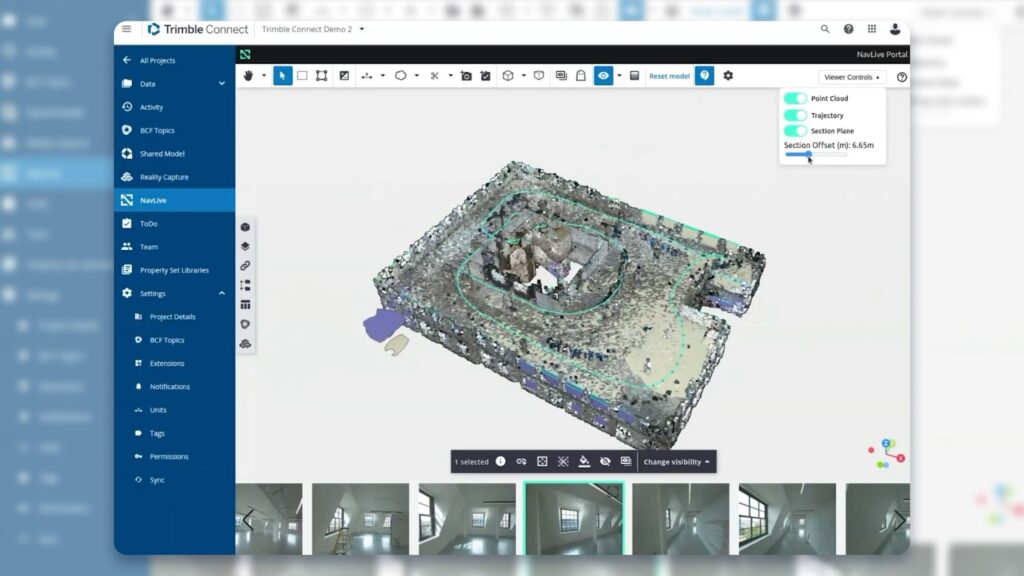
An example of viewing NavLive data directly inside Trimble Connect with SiteView

This is the right option if you want to:

  • navigate through the scan visually
  • inspect images captured by the scanner along the scan path
  • view the point cloud and mesh together
  • use the NavLive viewer inside Trimble Connect

To use either workflow, you will need a Trimble account (Trimble ID). Visit trimble.com to get started if required.


Workflow 1: Standard Export to Trimble Connect

Use this workflow to send selected NavLive scan files to a Trimble Connect project. The chosen data will appear in Trimble Connect Explorer as project files, where it can be viewed, shared, and downloaded.

Step 1: Open the scan in the NavLive Portal

  1. In the NavLive Portal, go to the main Projects page.
  2. Select the scan you want to export.
  3. Click Export Scan from the left-hand menu.
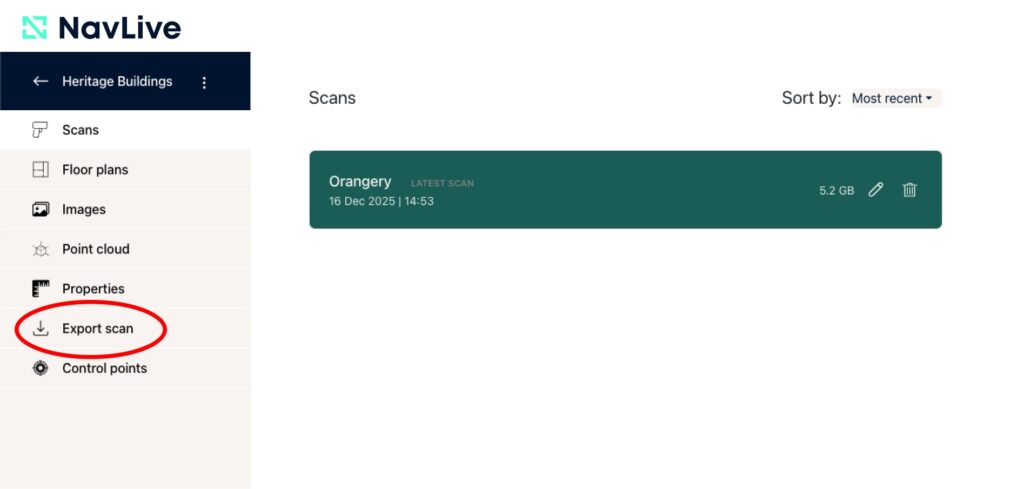
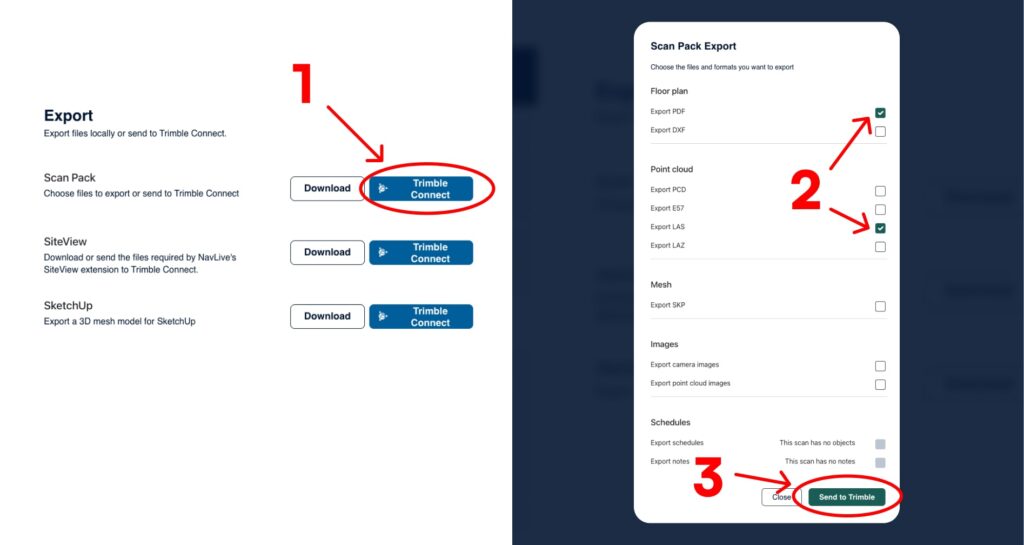
Step 2: Choose the Scan Pack export

  1. Find the Scan Pack export option and click Trimble Connect next to it.
  2. Choose the scan elements you want to include.
  3. Click Send to Trimble

Step 3: Sign in to Trimble

If you are not already signed in, you will be taken to the Trimble ID login page.

Once you have logged into Trimble through the NavLive Portal, the connection will remain active until you log out of the Portal.

Step 4: Choose a Trimble Connect project

After logging in, the Projects dialogue will appear. From here, you can either create a new project or export to an existing one.
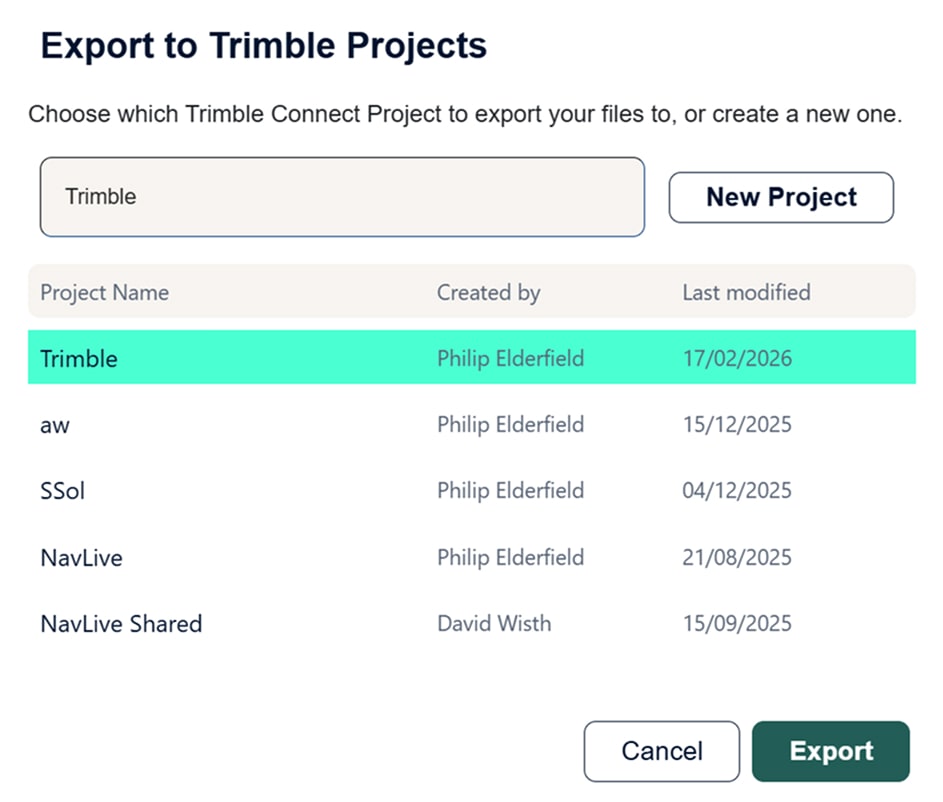
To create a new project:

  1. Enter a project name.
  2. Click New Project.
  3. Select the new project from the list.
  4. Click Export.

To use an existing project:

  1. Select the project from the list.
  2. Click Export.

Step 5: Open the files in Trimble Connect

Once the export starts, click Go to Trimble to open the project in a new browser tab. Trimble Connect will open in Explorer view, where your exported scan files will appear.

Depending on the size of the scan, the upload may take some time. If all files are not visible straight away, wait a little longer and refresh the browser if needed.

Optional: Download files locally instead

On the NavLive export page, you can also use the Download buttons to save export files directly to your computer.
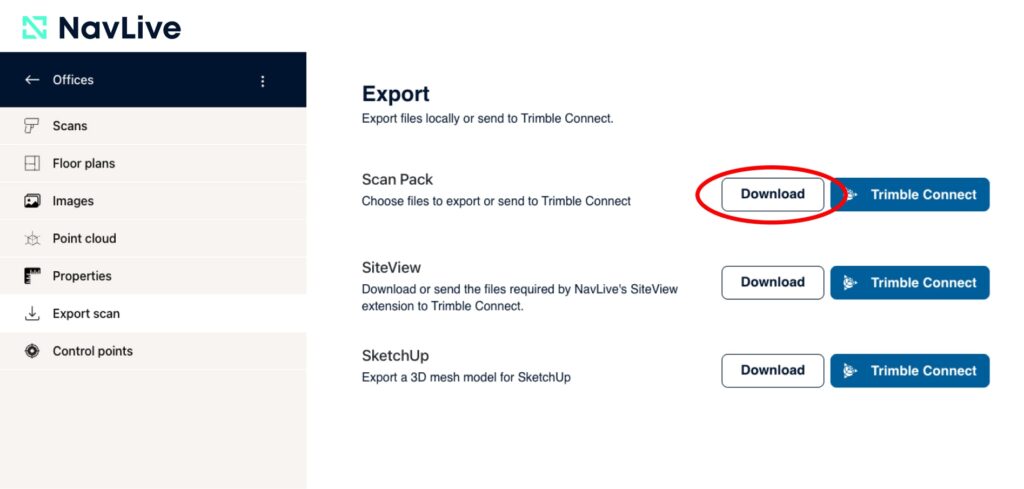
This is useful if you want to manage the files yourself or open them in another application, such as using the SKP mesh in SketchUp as a modelling reference.


Workflow 2: Creating a SiteView Project

Use this workflow when you want to view the scan in the NavLive SiteView extension inside Trimble Connect.

Choosing this option sends a specialised NavLive dataset to Trimble Connect for use with the SiteView viewer. Unlike the standard export, this workflow is designed for interactive scan review rather than general file access.

In SiteView, you can view:

  • the point cloud
  • the SKP guide mesh
  • the scanner trajectory
  • images captured by the scanner during the scan

Step 1: Open the scan in the NavLive Portal

  1. In the NavLive Portal, go to the Scans List.
  2. Select the scan you want to export.
  3. Click Export Scan from the left-hand menu.

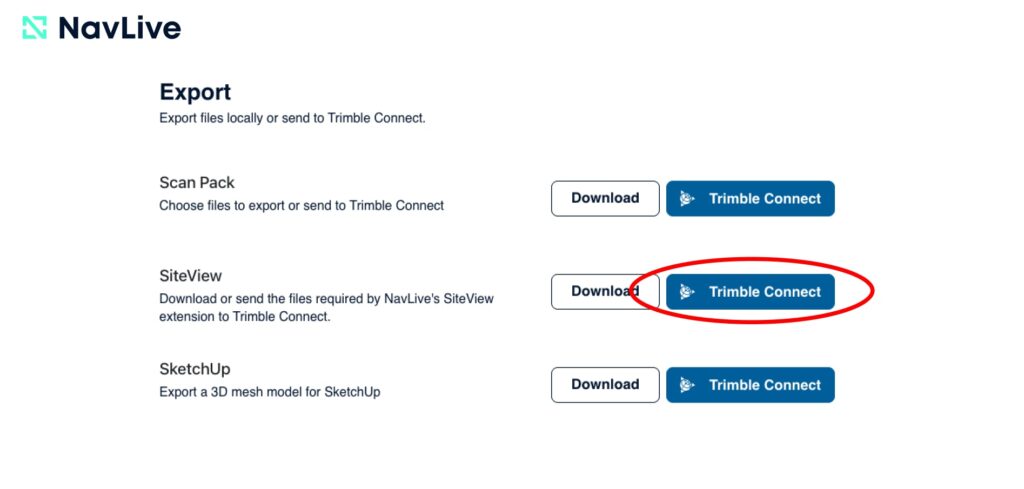
Step 2: Choose the SiteView export

  1. Find the SiteView export option.
  2. Click Trimble Connect next to it.

This will send only the files needed for SiteView.

Step 3: Sign in to Trimble

If you are not already logged in, you will be redirected to the Trimble ID login page.

Once signed in through the NavLive Portal, your Trimble connection will remain active until you log out of the Portal.

Step 4: Choose a Trimble Connect project

The Projects dialogue will then appear. You can either create a new project inside Trimble Connect, or use an existing one.

Step 5: Open the project in Trimble Connect

Once the export has started, click Go to Trimble. Trimble Connect will open in a new browser tab.

As with other exports, large datasets may take a little time to appear fully. If the project contents are incomplete at first, wait and refresh the page.

Enabling SiteView in Trimble Connect

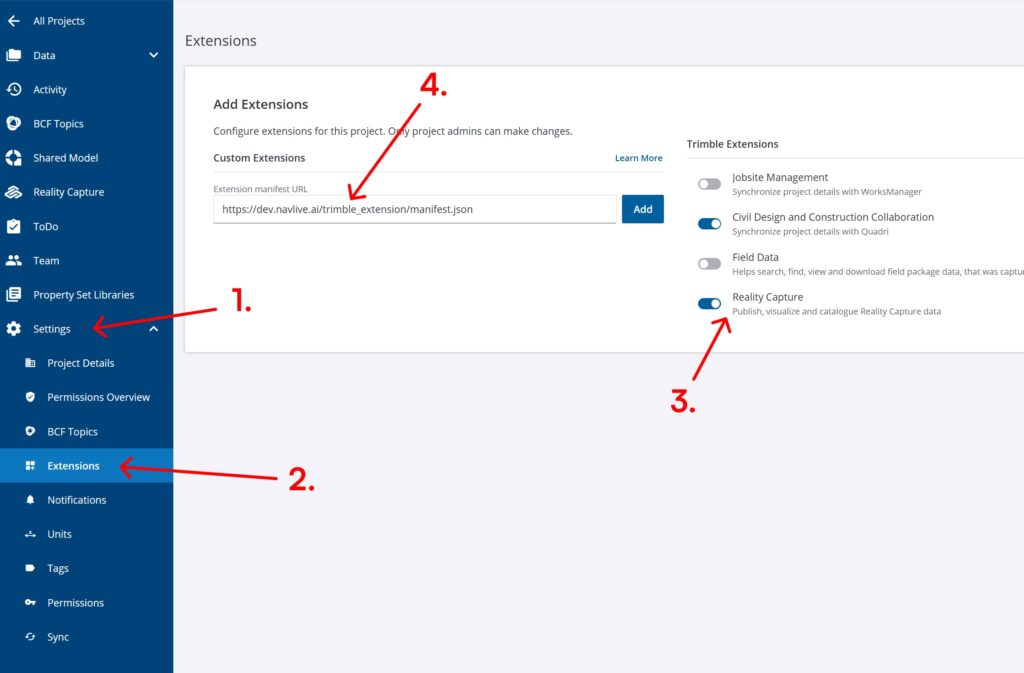
Before you can view the scan in SiteView, you need to enable the NavLive extension in Trimble Connect. To open Extensions In Trimble Connect:

  1. Go to Settings
  2. Select Extensions
  3. Turn Reality Capture on
  4. Add the NavLive extension by entering the following into the Extension Manifest URL field:
https://dev.navlive.ai/trimble_extension/manifest.json
The NavLive extension will appear in the left-hand menu. You can now click the NavLive extension in the left-hand menu to launch SiteView.
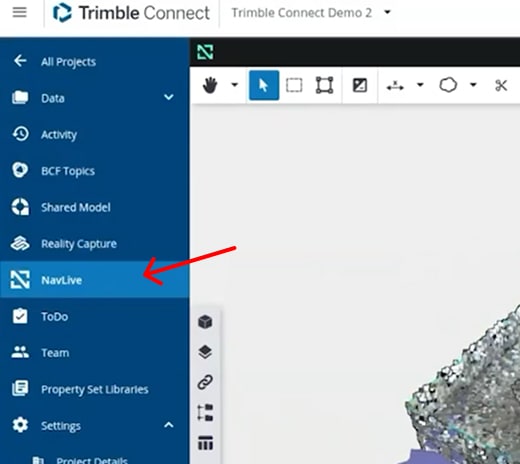
Viewing the scan in SiteView

Once the extension is open, you can load and navigate the scan data.

Load the model contents

  1. Click the Model button (cube icon) to the left of the viewer.
  2. From the dropdown menu at the top, select Everything in Project.

You will now see the available scan elements, including:

  • the point cloud
  • the SKP mesh
  • the scanner trajectory

A 3D camera icon will appear at each point where the scanner captured an image.

Show or hide scan layers

Use the eye icons in the left-hand panel to show or hide the mesh or point cloud.

Use the viewer controls

In the top-right area of the viewer, you can control:

  • the trajectory display
  • the section plane

If the controls are not visible, click Viewer Controls.

When the section plane is enabled, use the slider beneath it to adjust its height.

Browse captured images

At the bottom of the viewer, you will see an image carousel showing the photos captured by the scanner along the scan path.

You can:

  • drag along the image strip to move through the scan
  • click an image to highlight its camera position on the trajectory
  • click a camera position on the trajectory to jump to the matching image
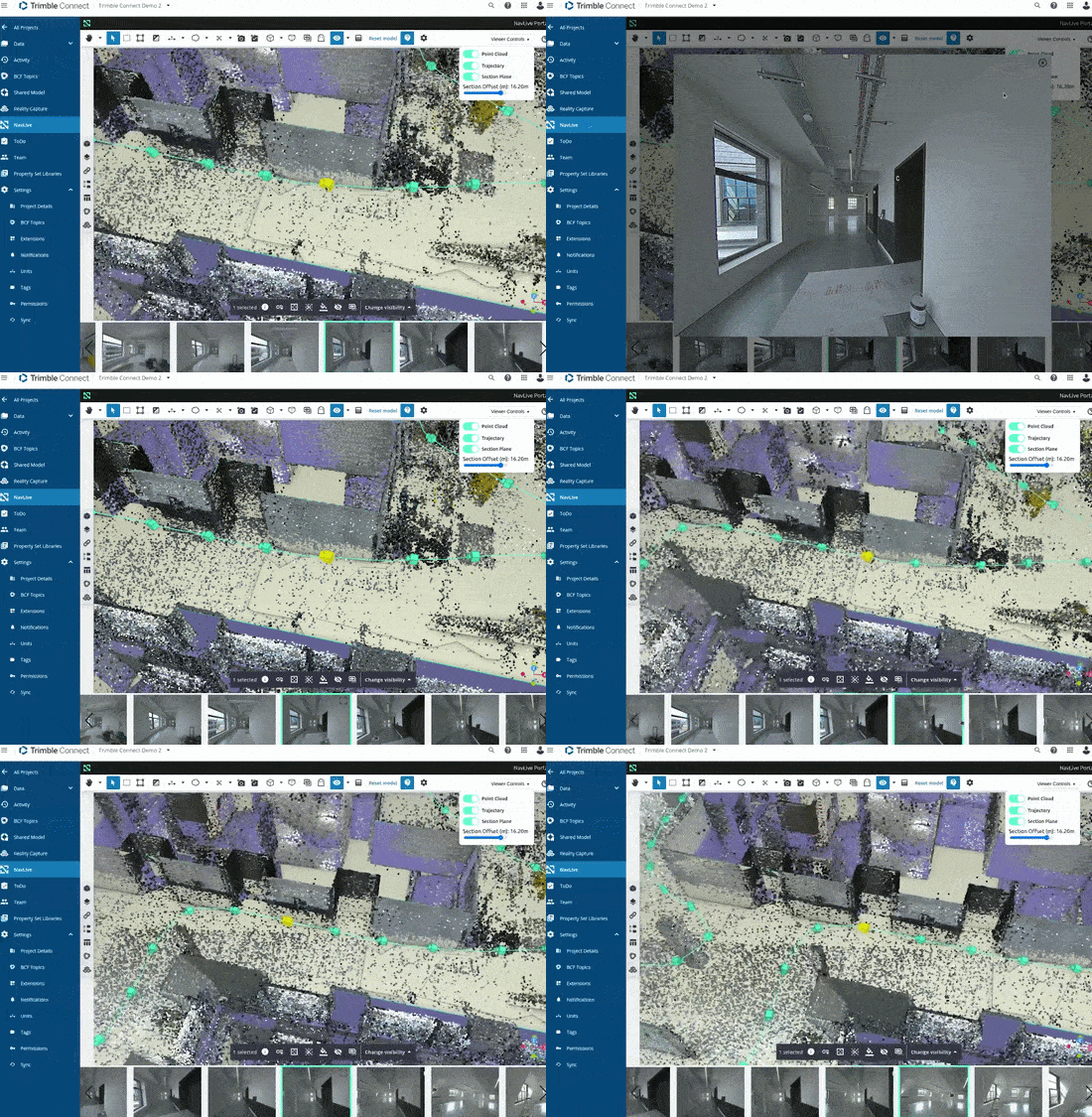
To enlarge an image, click the expand control in the top corner of the image. Additional viewer tools are available above the image strip, with tooltips explaining each one.
Next NavLive User Guide

Frequently Asked Questions

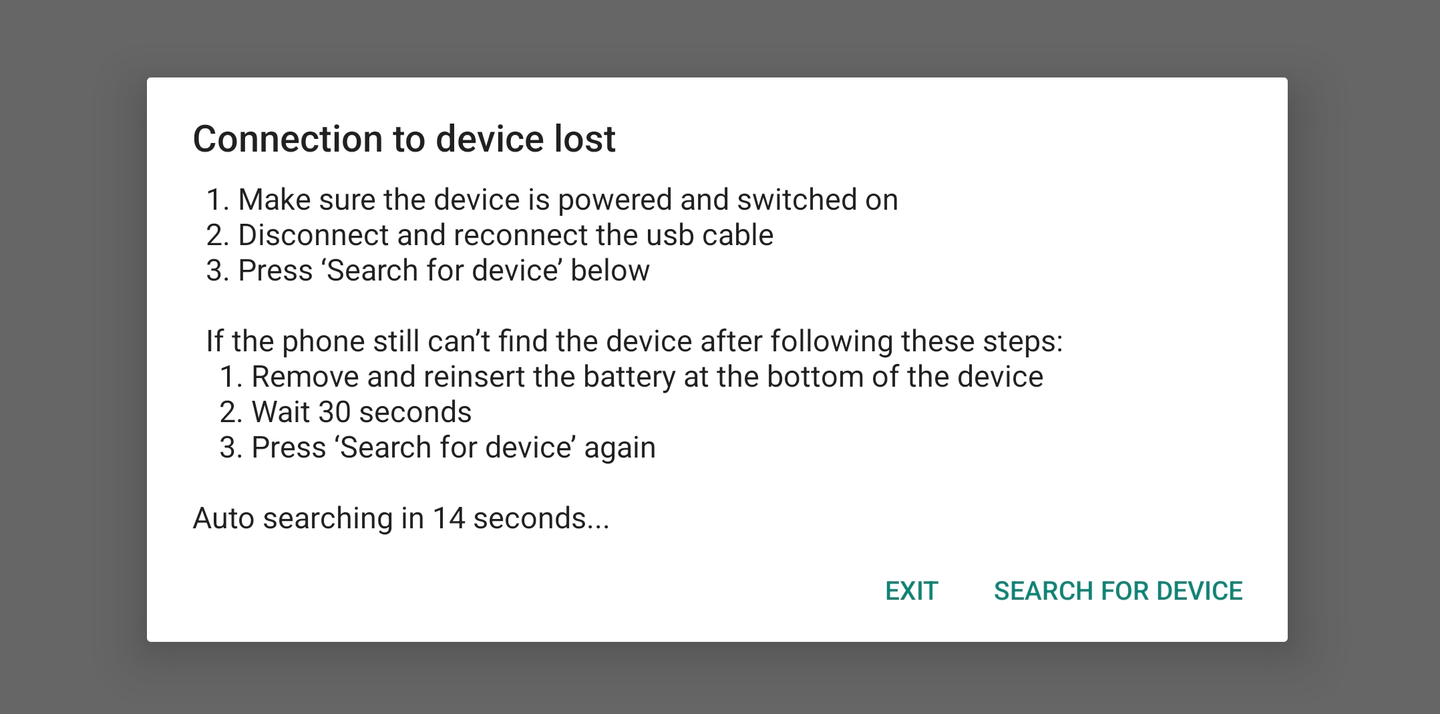
When you turn on the phone that ships with your NavLive Scanner, it will automatically begin searching for your scanner.

While it’s connecting, you’ll see a connection screen with a countdown timer and some quick troubleshooting tips. This screen will stay visible until the NavLive Scanner and phone are successfully connected.

Once connected, you’re ready to assemble the NavLive Scanner, attach the phone, and begin scanning.

For full setup instructions, including assembly and connection steps, see our Setup Guide.

Starting a scan is simple:

  • Tap New Scan from the left-hand side of the Home screen,
    or tap the + icon at the top right of the Scans screen within a project.

If you’re starting from the Home screen, you’ll be prompted to select an existing project or create a new one.

Once your project is selected:

  • Tap Start to begin the scan.

For best results, hold the NavLive Scanner steady while the scan initialises.

You’ll know the scan has started when:

  • The right side of the screen shows the live camera view from the front-facing camera.

  • The left side begins to show a 3D point cloud — a live visualisation of the space you’re capturing, built from thousands of sample points.

Now, simply walk through the space, keeping the NavLive Scanner pointed toward the areas you want to capture. Watch the point cloud build in real time to track your coverage.

When you’re finished:

  • Tap Stop at the bottom left of the screen.

  • Your scan will process automatically (this may take a few minutes depending on its size), then appear in the Scan List for your project.

See Getting Started With A Scan for a full walkthrough of the scanning process.

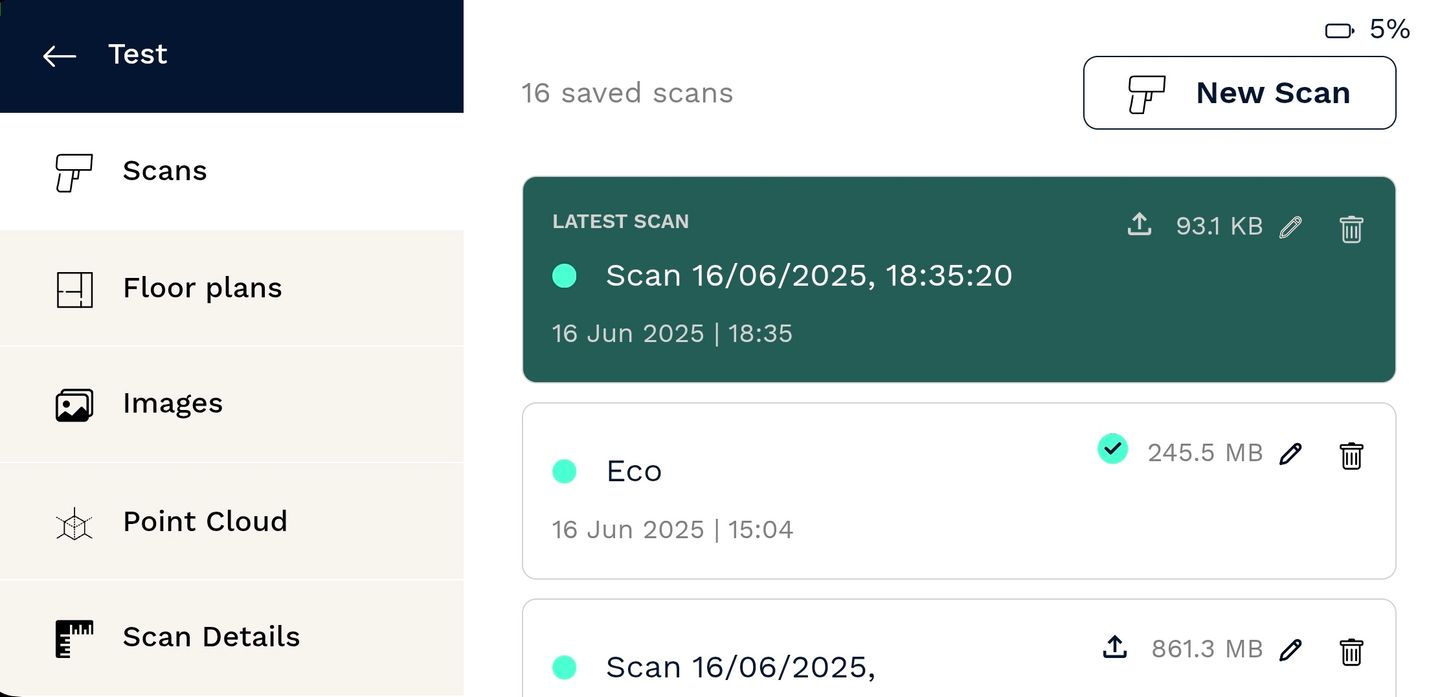
Once your scan has been saved, you can view it in the Scans List for the project it belongs to. This list includes all scans associated with that project, with the most recent shown at the top.

To upload your scan to the NavLive Portal for viewing and exporting:

  • Tap the Upload icon on the scan tile.

After completing a scan, you can upload it to your NavLive Portal directly from the phone interface. Just tap the Upload icon next to the scan you want to send.

Once the scan is uploaded, log in to your Portal to export the data in a variety of formats—ready for use in your design, documentation, or BIM workflows.

After you’ve uploaded your scan to the NavLive Portal, you can export your data in several industry-standard formats:

  • 2D Drawings: Export AI-generated floor plans as .dxf or .pdf files

  • 3D Point Clouds: Export as .las or .pcd files

Once exported, you can open and edit these files using your preferred design software—such as AutoCAD, BricsCAD, SketchUp, or DraftSight. The exported data includes AI-generated floor plans, plan and elevation slices, and the full 3D point cloud.

Need assistance? There are also service providers who can help create or refine plans for you. To learn more, email us at customersupport@navlive.ai.

As you scan, the NavLive Scanner captures images automatically from the three high-resolution cameras (front, left, and right) every 2 meters or approximately every 25 degrees rotation. These images are then available for review in the Images and Route View sections of the output.

To upload your scan output, the NavLive Scanner needs to be connected to a data network.

You have two options:

  • Connect to WiFi:
    Open the phone’s WiFi settings, select your preferred network, and then return to the NavLive app.

  • Use mobile data:
    If WiFi isn’t available, you can insert a data-enabled SIM card into the phone. Then use the phone’s system settings to connect to your mobile service provider’s network.

In a controlled environment, the NavLive Scanner can achieve measurement accuracy between 1cm and 2cm. Actual accuracy may vary depending on environmental conditions and scanning technique.

A point cloud is a 3D representation of the space you’ve scanned using the NavLive Scanner. It consists of thousands or even millions of individual points, each captured as the scanner samples its surroundings. The colour of each point is derived from the images taken during the scan, providing a realistic view of the environment.

This rich visual output helps you—and your team or clients—understand the space quickly and clearly. You can view the point cloud on your phone immediately after the scan, or upload it to your NavLive Portal where it can be viewed, exported, and shared as .las or .pcd files. These formats are compatible with 3D software packages, allowing you to generate floor plans, elevations, and BIM models.

While scanning with the NavLive Scanner, you can log a window or door by either:

  • Pulling the trigger on the handle

  • Or tapping the Log Object button on the bottom right of the Scan screen

This will capture the location and dimensions of the opening, which will be added to your AI Drawings (see Floor Plans for more on this feature).

For a full walkthrough, see Capturing Building Objects.

Yes! You can add a note at any time during a scan by tapping the Add Note button on the Scan screen (bottom left), or by pulling the trigger twice quickly.

Each note is saved with an image and pinned to the exact location it was recorded.

For full instructions, see Adding Notes.

We recommend shutting down your NavLive Scanner as soon as you’ve completed all your scans and uploaded them to the Portal.

There are three ways to shut down the device:


1. Soft Shutdown via the App (Recommended)

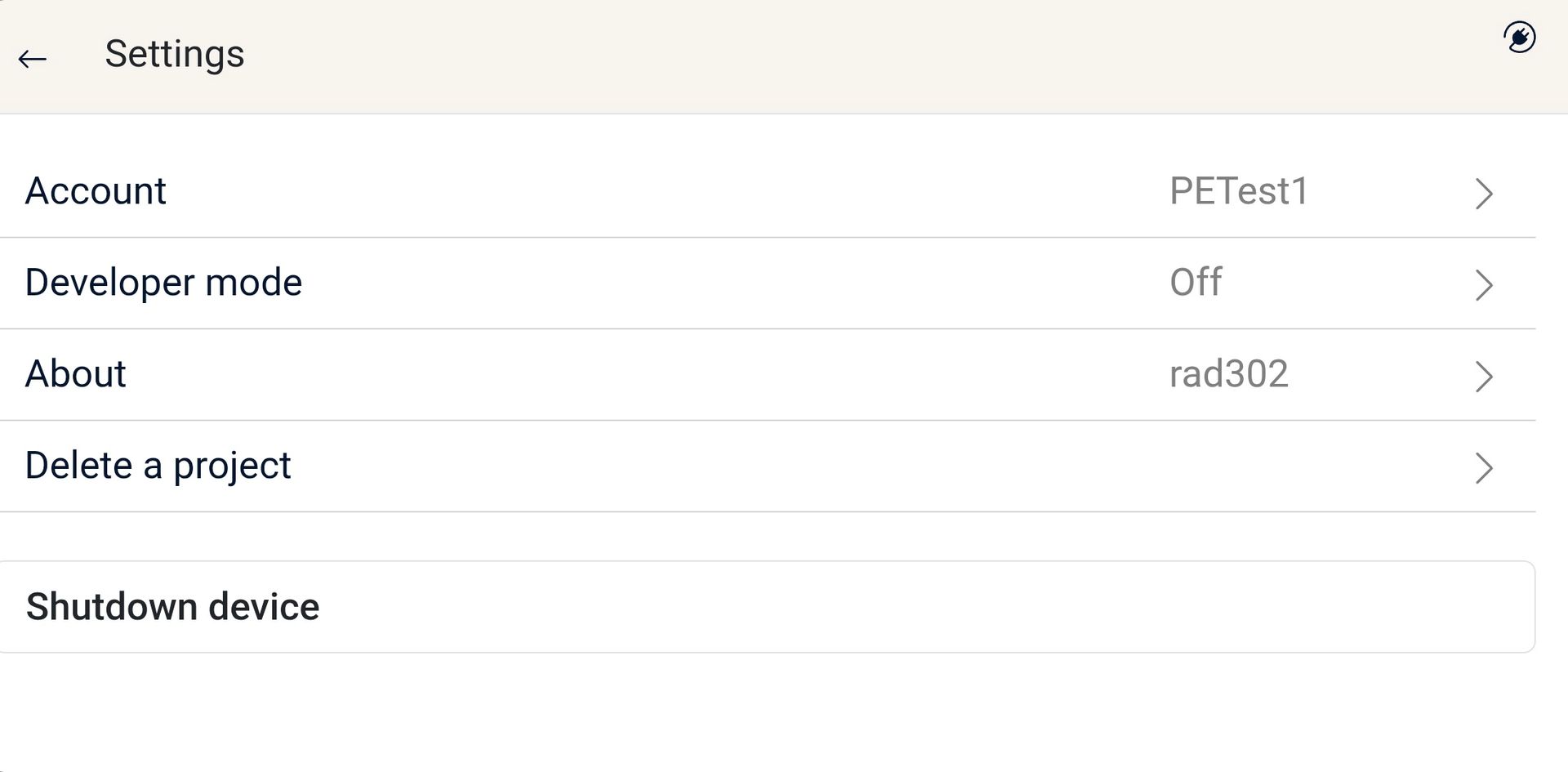
  1. Tap the Settings icon at the top left of the Home screen.

  2. Select Shutdown Device from the Settings menu.


2. Soft Shutdown via Power Button

You can also shut the device down using the Power Button on the bottom rear of the scanner:

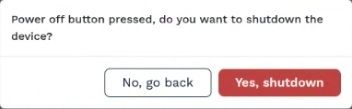
  • Press the button once to trigger a shutdown confirmation popup.

  • Confirm to shut the scanner down.


3. Forced Shutdown (Only if Unresponsive)

If the scanner becomes unresponsive, you can perform a hard shutdown:

  1. Press and hold the Power Button for 12 seconds.

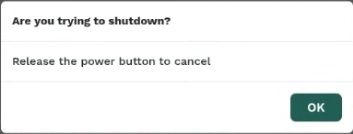
  2. Around the 8-second mark, a confirmation popup will appear:

  3. Keep holding to proceed with the shutdown, or release the button to cancel.

After 12 seconds, the scanner will power off completely and can be restarted.

⚠️ Any scans captured before shutdown should be saved. If you have trouble accessing them, contact NavLive Support at customersupport@navlive.ai.

The NavLive Scanner features three high-resolution cameras—positioned on the front, left, and right. Each camera captures images at a resolution of 1456 × 1088 pixels.

You can export your scan outputs from the NavLive Portal in the following formats:

Floor Plans:
• .dxf
• .pdf

3D Point Cloud:
• .las
• .pcd

For optimal scan quality, the NavLive Scanner has a maximum effective range of 60 metres.

The NavLive app is built for Android and may run on other Android phones. However, we currently only support the NavLive app on the phone supplied with your scanner.

Additionally, the app is not available via the Play Store or any public download site. It comes pre-installed and configured on the supplied device.

While it is technically possible to use the phone for general smartphone functions, we do not recommend or support this. The phone is configured specifically for use with the NavLive Scanner, and we do not provide support for any other features, apps, or phone-related issues outside the NavLive system.

The NavLive Scanner generates point cloud data at a resolution of approximately 1 point per centimetre, or around 1 million points per cubic metre. This provides a detailed and accurate 3D representation of the scanned space.

The battery provides approximately 1 hour of scanning time before full depletion. However, we recommend swapping the battery when it reaches 10–20% to avoid interruptions.

A low battery warning appears at 20%, and the device will automatically shut down at 6%.

The current battery level is always shown in the top right corner of the phone screen—unless the NavLive Scanner is connected to mains power via the battery charger, in which case a power icon is shown instead.

Note: This battery icon shown on the top-right of the phone refers to the scanner’s battery, not the phone’s battery.

To replace the battery:

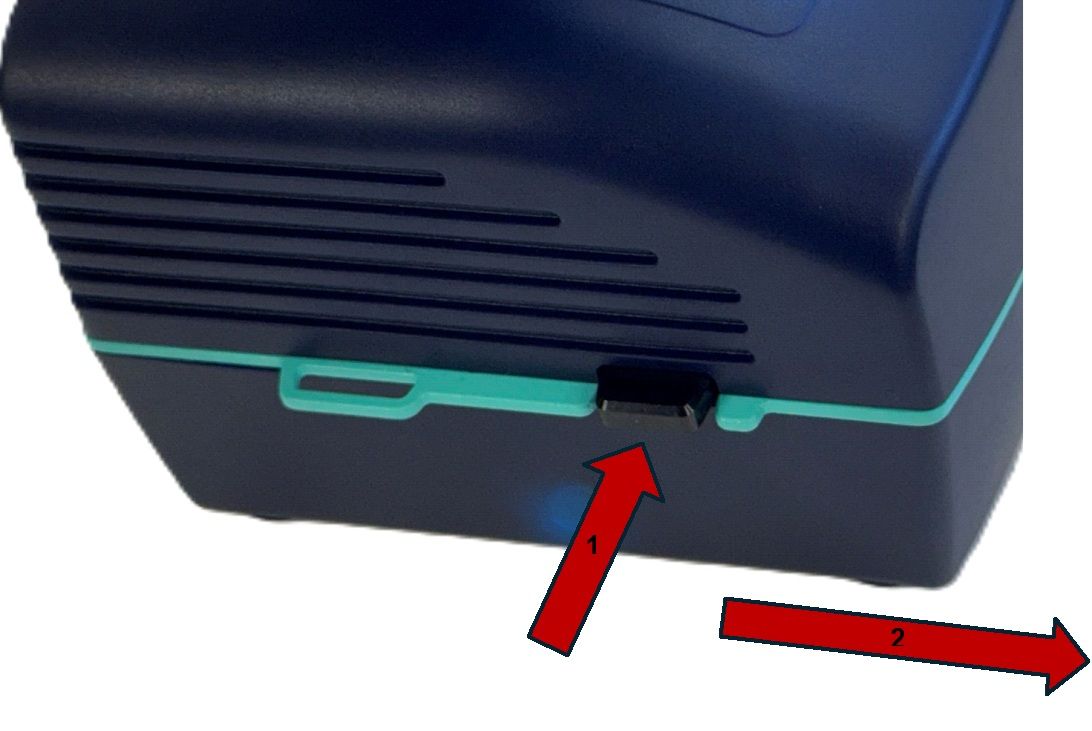
  1. Press the black release button on the side of the NavLive Scanner.

  2. Slide the battery housing forward to expose the battery.

  3. Swivel the two battery retainers upward and outward.

  4. Lift and slide the battery out from the rear of the housing.

  5. Insert the new battery and reverse the steps to secure it in place.

⚠️ Important: Do not remove the battery while the scanner is powered on.
This may damage your NavLive Scanner and result in data loss. If this occurs, contact us at customersupport@navlive.ai — we may be able to help recover your data.

Yes — but only under the right conditions.

You can safely hot-swap the battery (replace it while the scanner is powered on) only if:

  • The supplied charger is connected to the scanner, and

  • The charger is plugged into a switched-on mains power supply.

This temporary power connection will keep the device running while you swap batteries.

⚠️ Warning:
Do not attempt to change the battery without an external power supply connected. Doing so risks damage and potential data loss.

We strongly recommend removing the battery from the NavLive Scanner after powering it down, especially when transporting or storing the device. This helps protect the battery, prevent accidental power-on, and reduce the risk of damage during travel.

If you need help or have any questions, you can reach the NavLive Customer Support team by emailing:
📧 customersupport@navlive.ai

Schedule your NavLive demo

Schedule a NavLive demo

In this initial 15-minute call, we'll:

  • Gather some quick info about your current surveying workflows.
  • Answer any questions you have about NavLive.
  • Schedule an in-person site visit to demo the NavLive scanner at your office.