A Faster, Clearer Way to Scan: Introducing NavLive 2.0
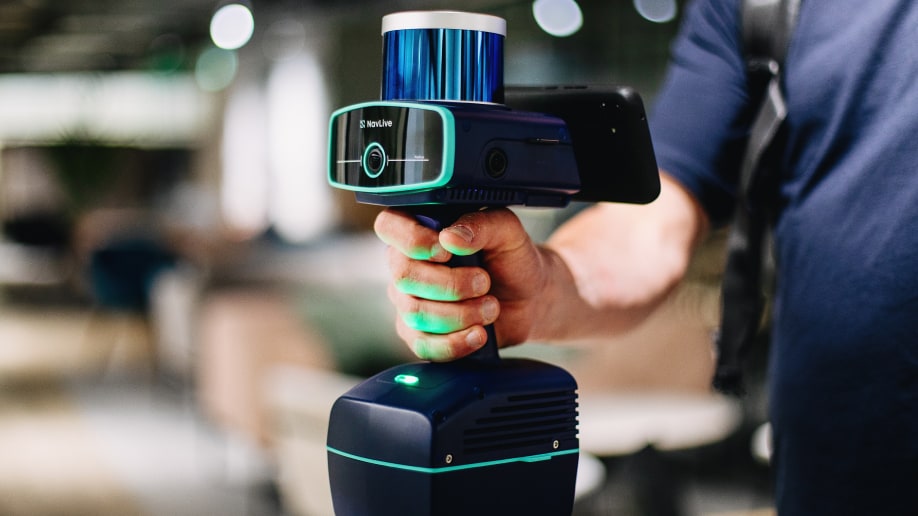
Today, we’re thrilled to be releasing NavLive 2.0.0, probably the largest update we’ve made so far.
As well as a few headline features, a huge amount has also changed under the hood: a redesigned Portal, a new way to revisit a scan, and a long list of reliability improvements that add up to a noticeably smoother experience.
Here’s what’s new:
A Better Portal Experience
Possibly the biggest change in this release is the Portal itself. We’ve moved navigation into a bar across the top and pulled your scan list into the left-hand column. It’s a small layout shift that makes a real difference once you’re working across multiple sites.
You can now flick between point clouds, floor plans and other views on two different scans with a single click, rather than hunting through menus to get there.

Search and filtering have improved too, so finding the right scan in a growing project list takes seconds rather than scrolling. And the floor plans themselves are sharper, generated through improved segmentation that picks out wall lines more cleanly.
In short: the new NavLive Portal is showing you the same data, but now presented in a way that makes it obvious where to look and how to compare.
Site View: Walk the Scan Again, Without Being There
One feature we’re really excited about is called Site View, which lets you re-walk a completed scan in first person.
Start from a top-down 2D floor plan, click any of the green dots marking the scanning path, and you’re dropped straight into the original photo taken at that exact point, alongside a 3D point cloud view of the same spot.
Anyone who’s tried to make sense of someone else’s scan data knows the frustration of trying to reconstruct what was actually in front of the scanner at a given moment. Site View removes the guesswork. You don’t need to have been on site, and you don’t need to remember what you saw.
Everything’s right in front of you to give you all the context and reference points you need to build out accurate drawings.
Sharper Scan Data
Beyond the interface, this release carries a meaningful jump in underlying data quality:
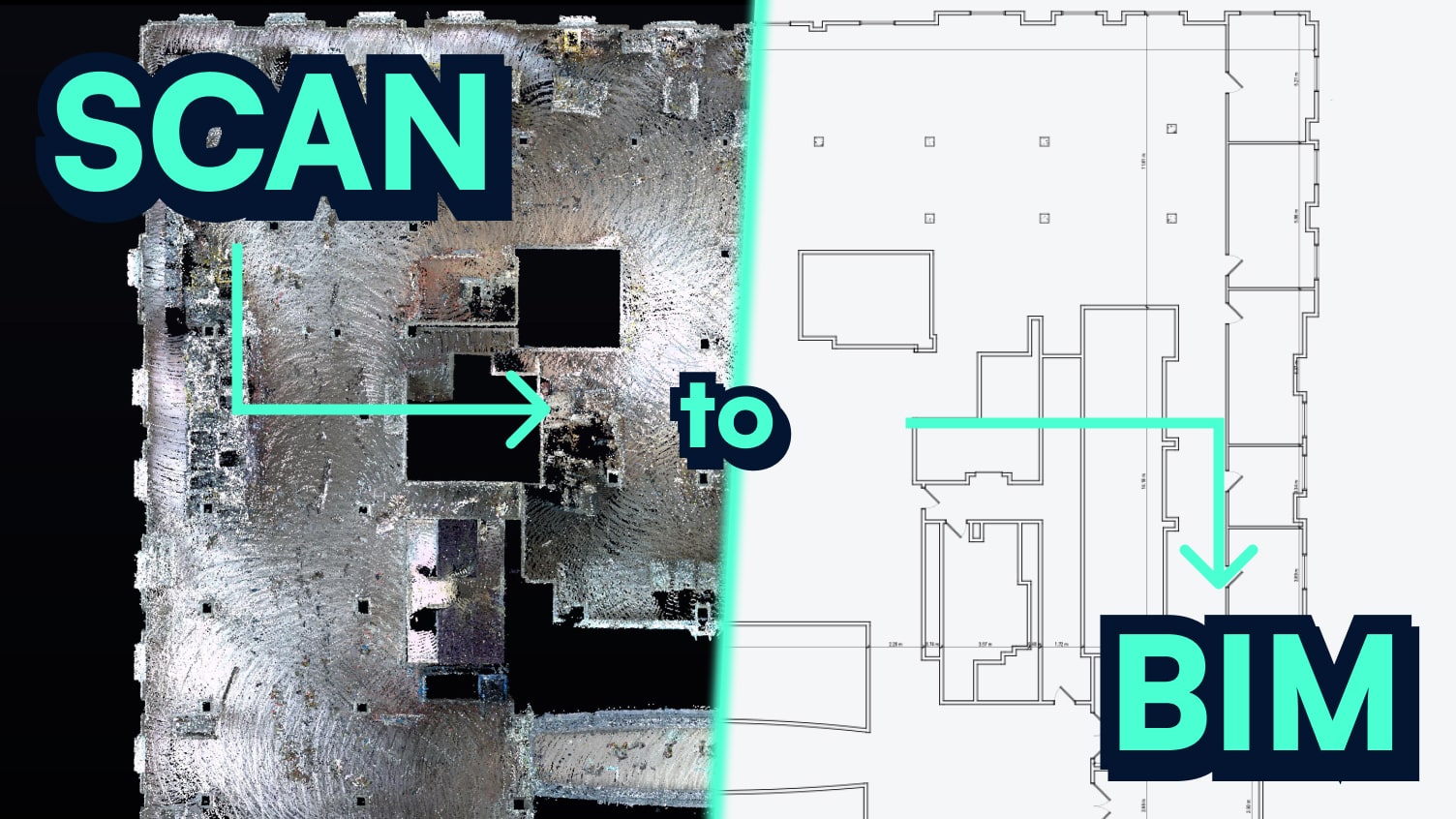
- Scan2BIM, rebuilt on deep learning. We’ve moved to an offline, deep-learning based Scan2BIM method that recognises wall features with noticeably more accuracy, meaning cleaner plans, ready to drop straight into Revit or your modelling tool of choice.
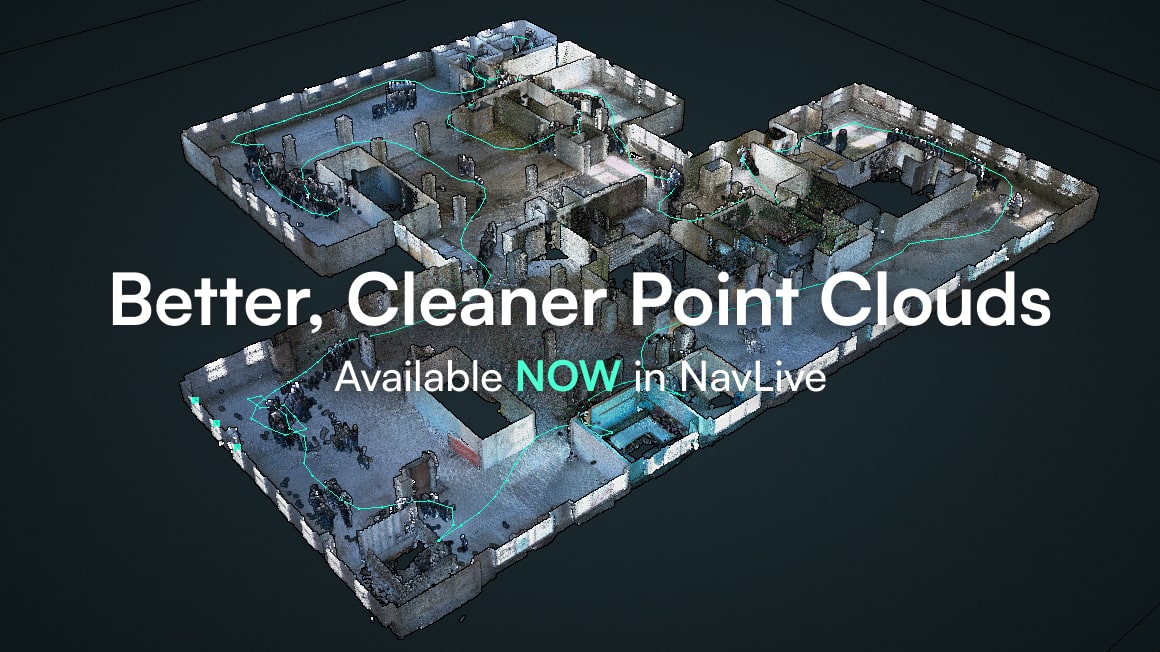
- Better point clouds. A new cleaning method strips out noise and moving objects from your captures, while improved colourisation gives you a visibly sharper point cloud to work from. Learn more about point cloud denoising in NavLive.
- Tougher in the field. Sensor driver improvements to IMU and camera timestamping, plus better camera performance in bright sunlight, mean more consistent results in conditions that have historically been difficult.
Faster, Quieter, More Reliable
A lot of this release is invisible by design. Scans now upload faster thanks to smaller file sizes, Portal uploads are roughly half the size they were, translating to twice the speed.
Starting and stopping a scan is quicker. And under the hood, we’ve shipped a run of reliability fixes: more consistent snapshot capture on long runs, corrected control point alignment near the origin, faster postprocessing on large scans, and a fix for a rare case where mapping data could be lost when stopping a scan.
We’ve also added face blurring as a standard step in processing, with license plate blurring built and waiting in the wings until we’re happy with its processing time.
Smaller Fixes, Still Worth Knowing About
- Fixed an issue preventing PDF download of custom floor plans
- Fixed a bug affecting Custom Slices
- Reduced occurrences of missing snapshots during long scan runs
- Fixed incorrect control point alignment when a control point frame was close to the origin
- Improved postprocessing speed and reliability for very large scans
- Fixed a rare issue where mapping data could be lost when stopping a scan
How to Upgrade Your NavLive Scanner to 2.0
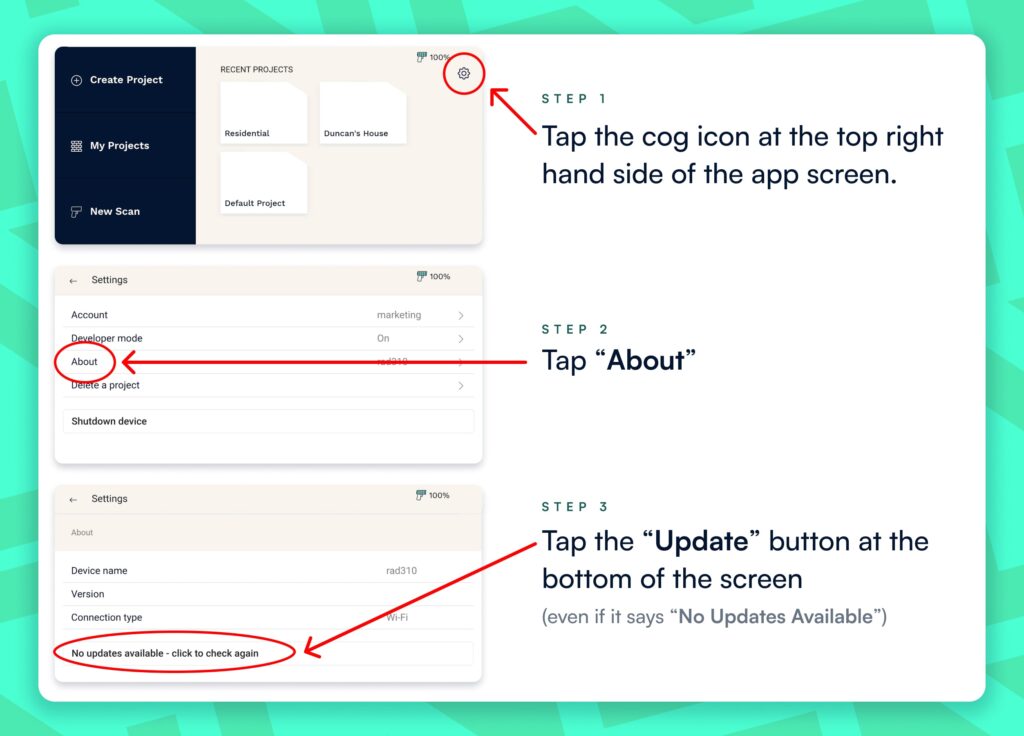
To start accessing these new upgrades, which are being rolled out tomorrow, you’ll need to update your NavLive Scanner. Before you begin, make sure the device is fully charged or connected to mains power. Switch it on, log in as usual, and then:
- Tap the cog icon at the top right-hand side of the app screen.
- Tap About.
- Tap the Update button at the bottom of the screen – even if it says ‘No Updates Available’.
![[Customer Story] From Site Scan to Revit Model in Under Two Hours](https://navlive.ai/wp-content/uploads/2025/11/bw-scanner.jpg)